
 Written by Taylor London
 Applies to: Motivated seller sites published starting November 2025 and any Carrot site published from February 2026 on.
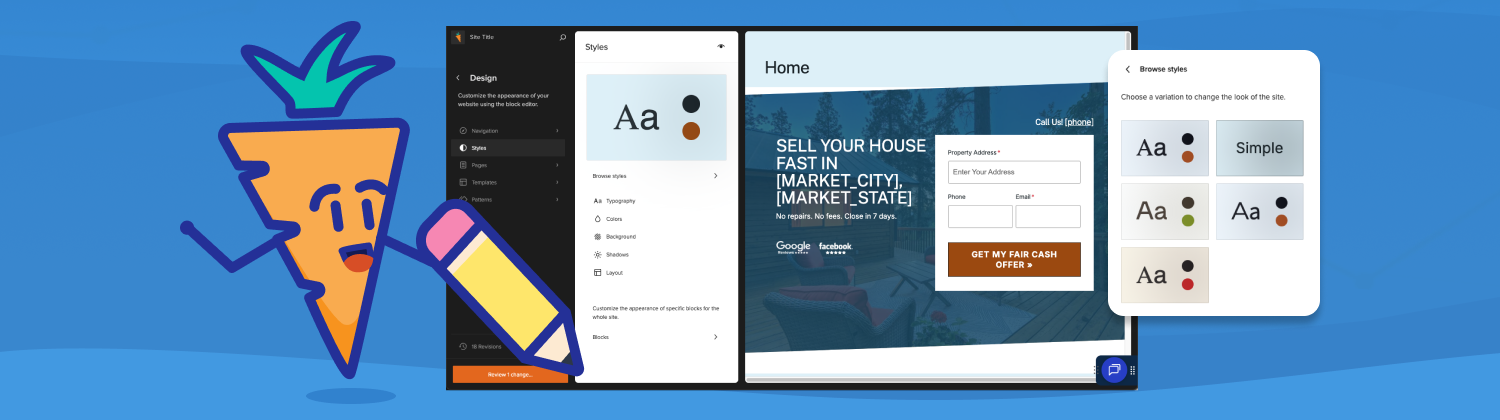
Carrot sites come with a homepage and blog home page (aka, posts page) already set up. However, if you’re creating an alternate homepage or want to designate a different page as your blog home, you can easily reassign these settings in just a few clicks.
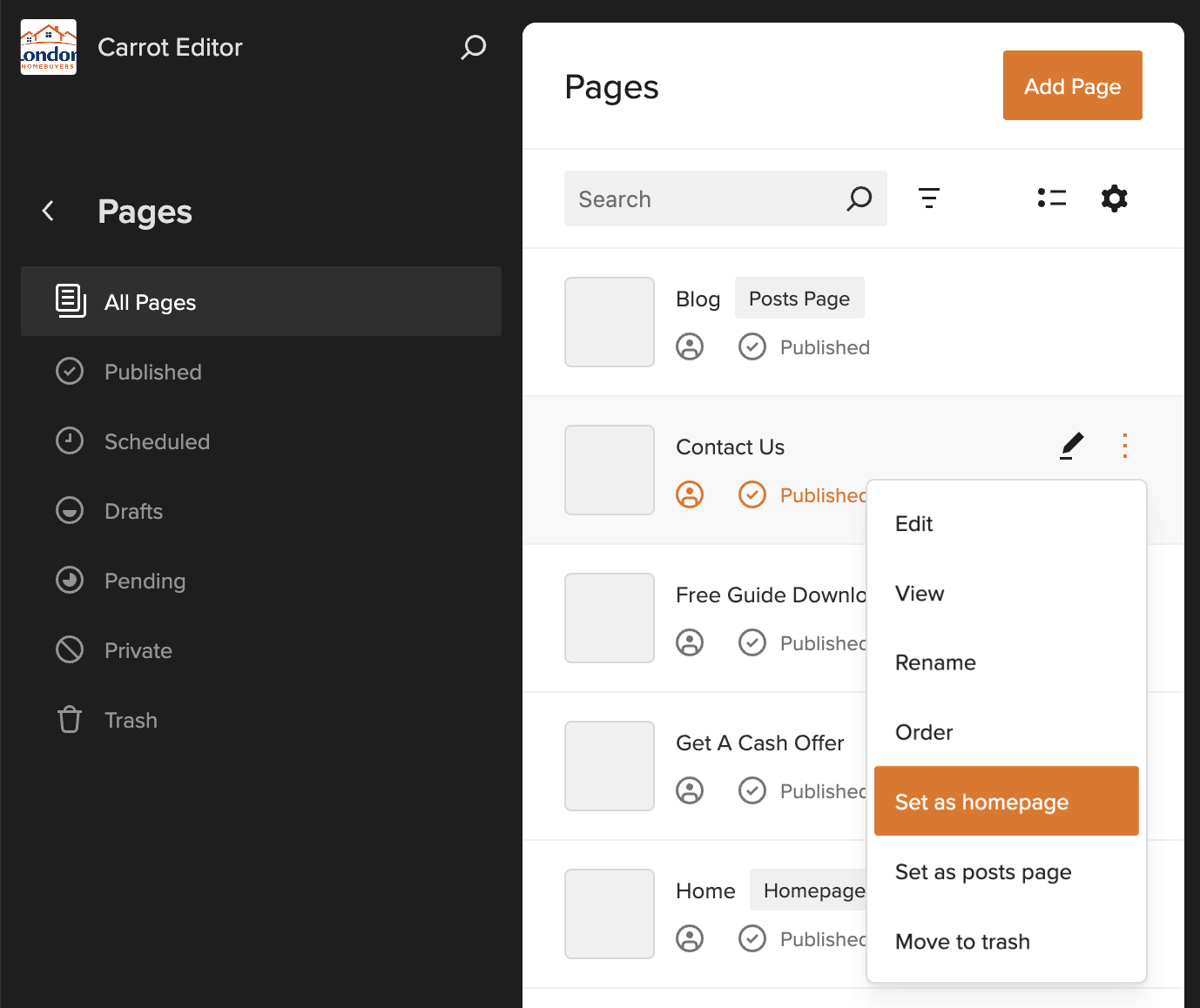
How to Assign Your Homepage
Follow these steps to set any page as your site’s homepage:
Step 1: Navigate to the Design tab in your Carrot dashboard.
Step 2: The Site Editor will open automatically. Click on Pages in the left sidebar.
Step 3: Once all your pages have loaded, locate the page you want to set as your homepage.
Step 4: Click the three dots (ellipses icon) next to the page name.
Step 5: From the dropdown menu, select Set as Home Page.
That’s it! Your selected page is now your site’s homepage.
How to Assign Your Blog Home Page (Posts Page)
If you want to designate a different page to display your blog posts, follow the same process:
Step 1: Navigate to the Design tab in your Carrot dashboard.
Step 2: The Site Editor will open. Click on Pages in the left sidebar.
Step 3: Find the page you want to use as your blog home page.
Step 4: Click the three dots (ellipses icon) next to the page name.
Step 5: From the dropdown menu, select Set as Post Page.
Your blog posts will now display on this page.
Important Notes
- You can identify which page is currently set as your homepage or posts page by looking at the page list—these designations will be displayed next to the relevant pages.
- While you have the flexibility to change these settings, we recommend keeping your homepage and posts page consistent to maintain site structure and SEO performance.
- Only one page can be designated as the homepage, and only one page can be the posts page at a time.
Need More Help?
If you have questions about the Carrot Editor or need assistance with your site design, reach out to our Live Chat team or explore more tutorials in our Help Center.