
 Written by Taylor London
 The Image Audit tool gives you one central place to manage every image across your entire Carrot website: replacing photos, adding alt text for SEO, writing captions, and uploading your site branding. Instead of opening each page individually, you can review and update everything from a single view.
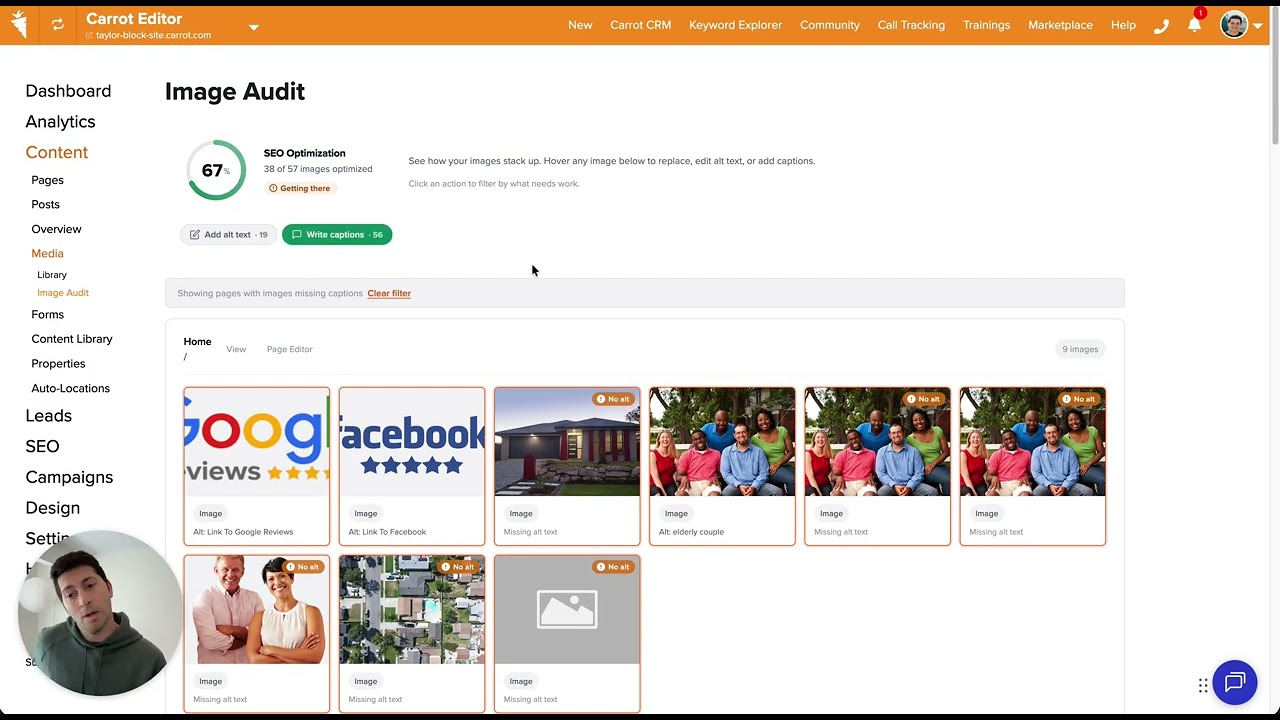
Click here to go straight to your image audit!
Learn How To:
- Find the Image Audit Tool
- Filter Images by What Needs Attention
- Upload Your Logo and Favicon
- Replace Images Across Your Site
- Add Alt Text to Images
- Write Image Captions
- Open or Edit a Page Directly from Image Audit
- Tips On Getting the Most Out of Image Audit
Finding the Image Audit Tool
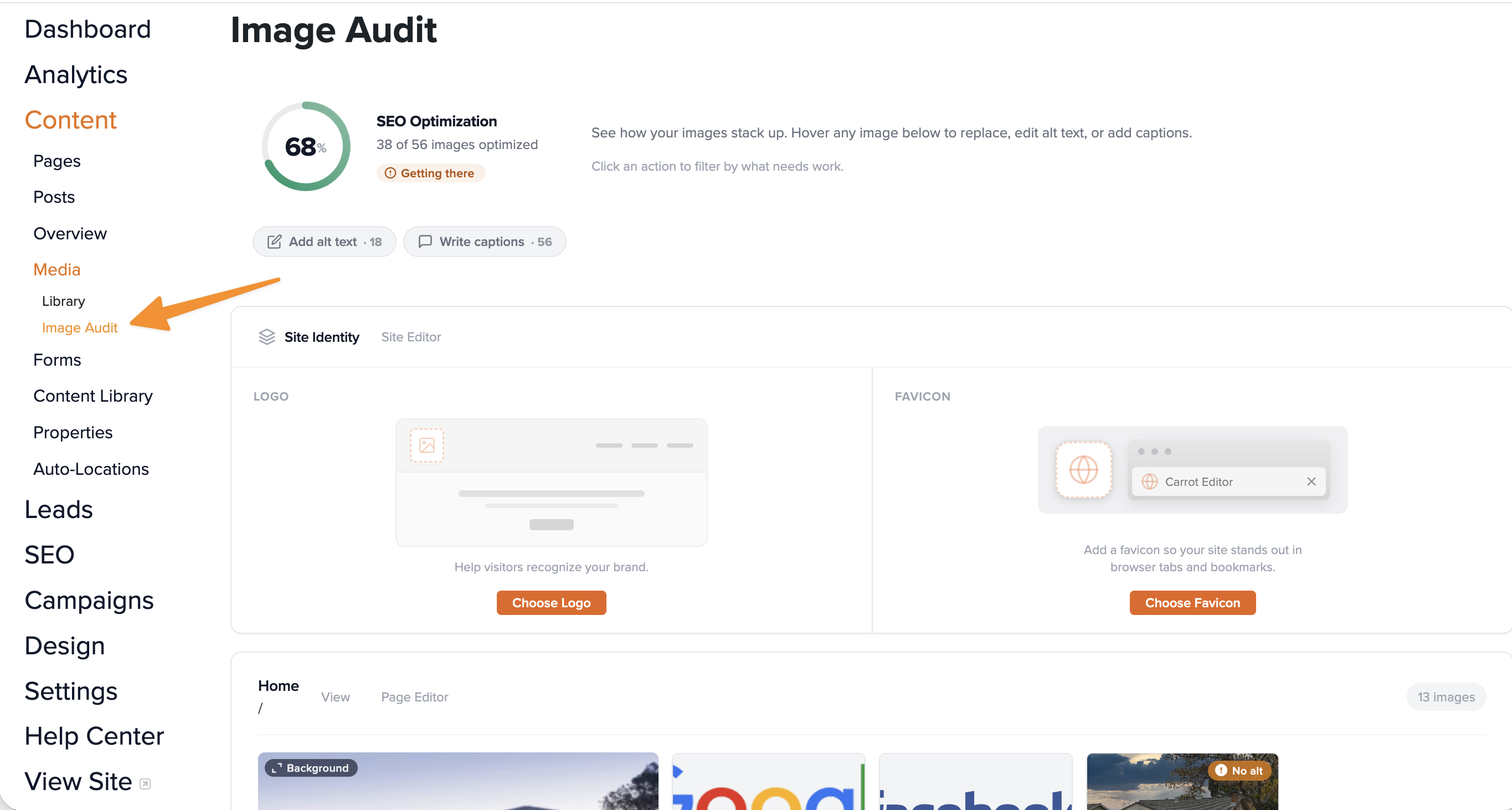
- From your Carrot dashboard, click Content in the left navigation
- Under Content, click Media
- Select Image Audit
OR
Click this link to head straight to your site(s) image audit
You’ll land on a full overview of every image on your site, organized by page.
Filtering by What Needs Attention
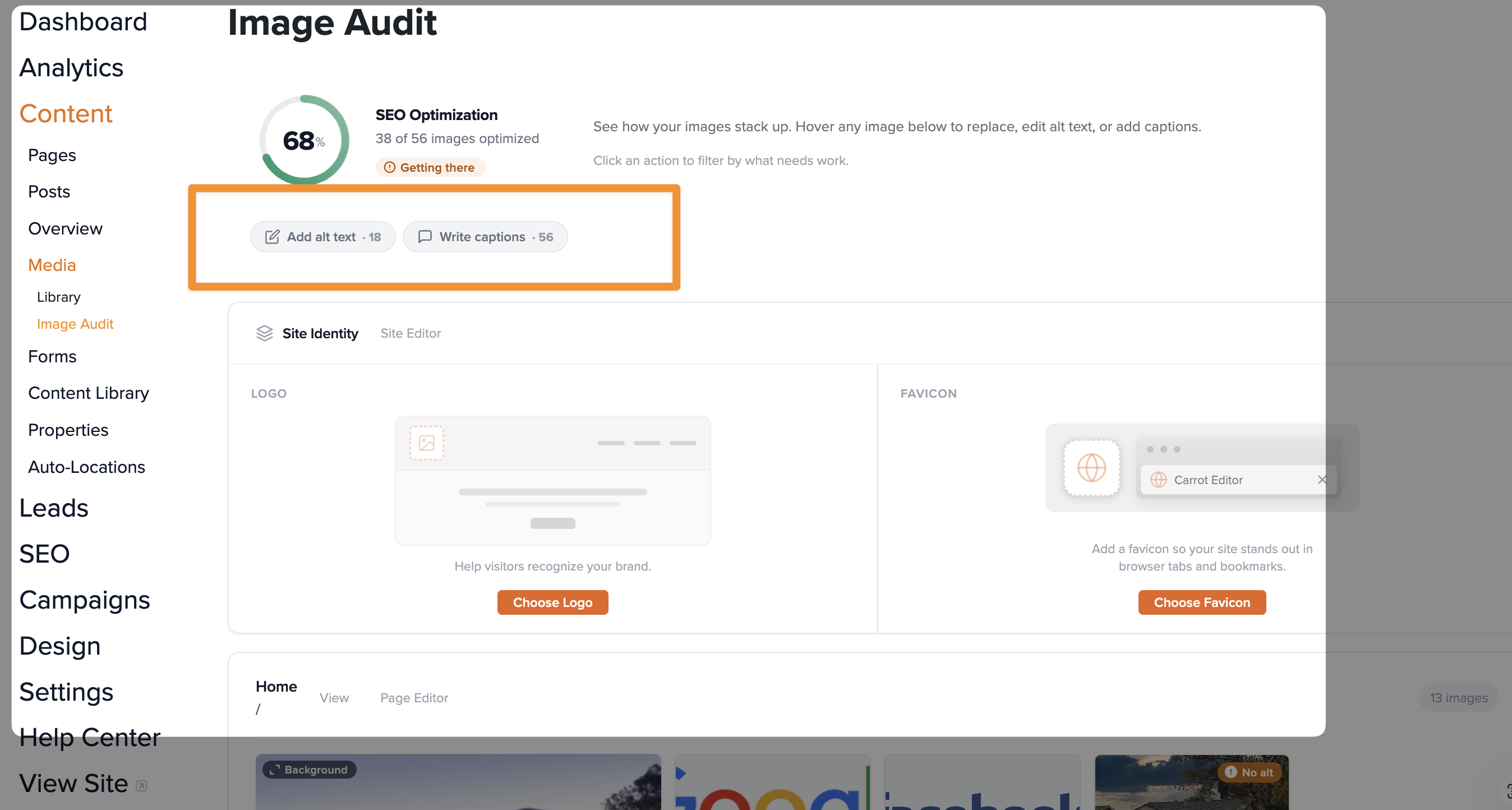
At the top of the Image Audit view, you’ll find filters that let you zero in on specific tasks:
- Add alt text — shows only images that haven’t been described yet
- Write captions — shows images without a caption
To clear any filter and return to the full list, simply deselect it. This is especially helpful if you’re working through SEO improvements and want to knock out alt text across all pages in one session.
Uploading Your Logo and Favicon (Site Identity)
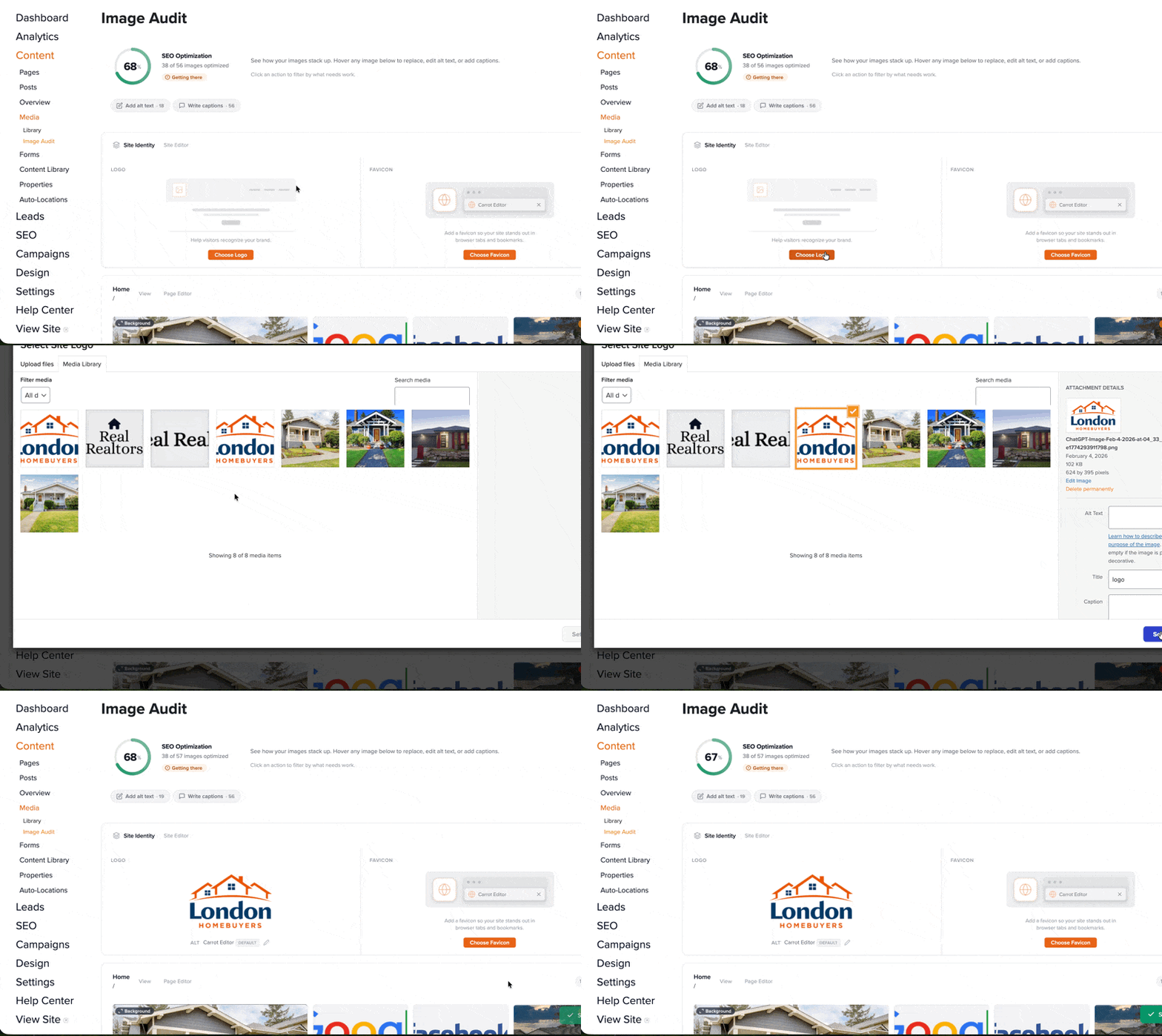
The Site Identity section at the top of the Image Audit tool is where you manage your site’s branding assets.
To upload or replace your logo:
- In the Site Identity section, hover over the logo area
- Select Choose Logo to swap in a new image, View to preview it, or Remove to delete it
- Once uploaded, click the alt text button to add a description (e.g., “London Homebuyers Logo”)
To upload your favicon: Your favicon is the small icon that appears in browser tabs and search results. Upload it in the same Site Identity section, just beside your logo.
💡 Tip: You can also click the Site Editor link in this section to jump directly to your full site design settings.
Replacing Images Across Your Site
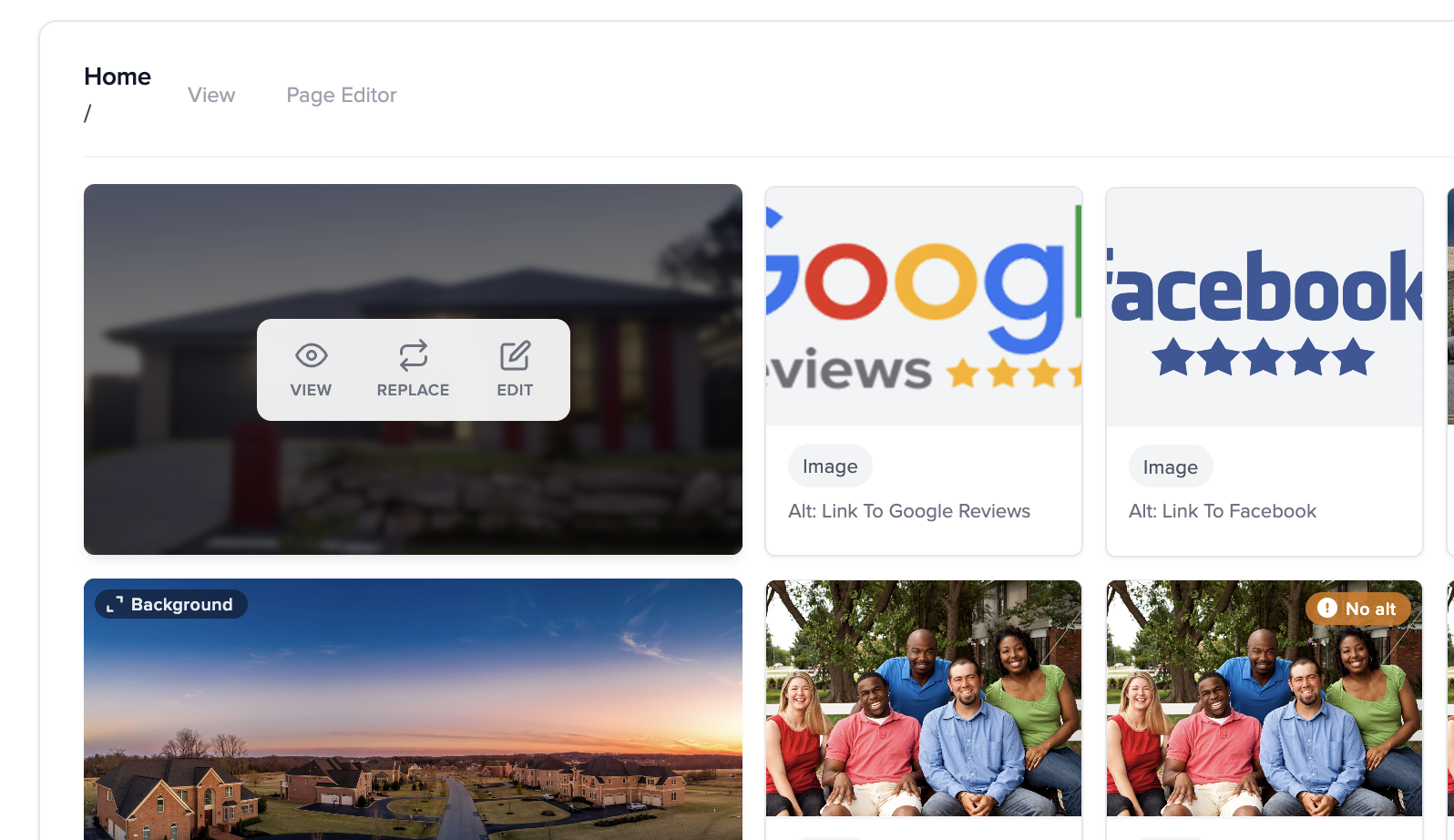
Below Site Identity, Image Audit displays your images organized page by page. If the same stock image appears on multiple pages, you’ll see it listed multiple times — once for each instance.
To replace an image:
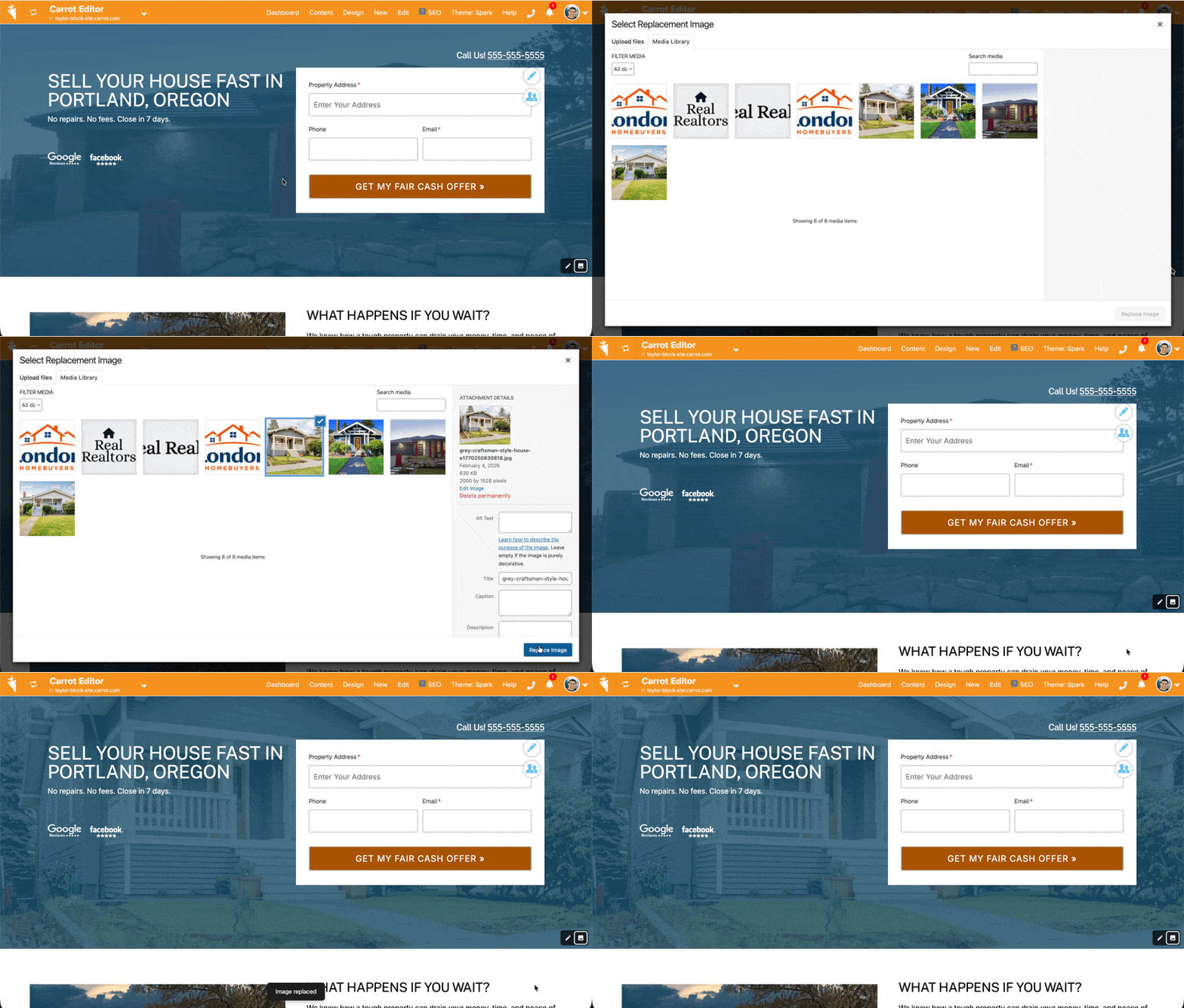
- Find the image you want to update and hover your mouse over the image
- Click Replace
- Select a new image from your media library or upload one. Once an image is selected, it will automatically save to your site.
- The image updates just for that location–it won’t update the same photo located on a different page
To preview your change:
- Click the View link next to the image entry to see an expanded view
- Or click Page Editor to open that specific page directly in the editor
💡 Bonus: While viewing your live site in the editor, you may notice a small overlay icon on images. Hover and click Replace Background to change an image and add alt text without leaving the page view.
Adding Alt Text to Images
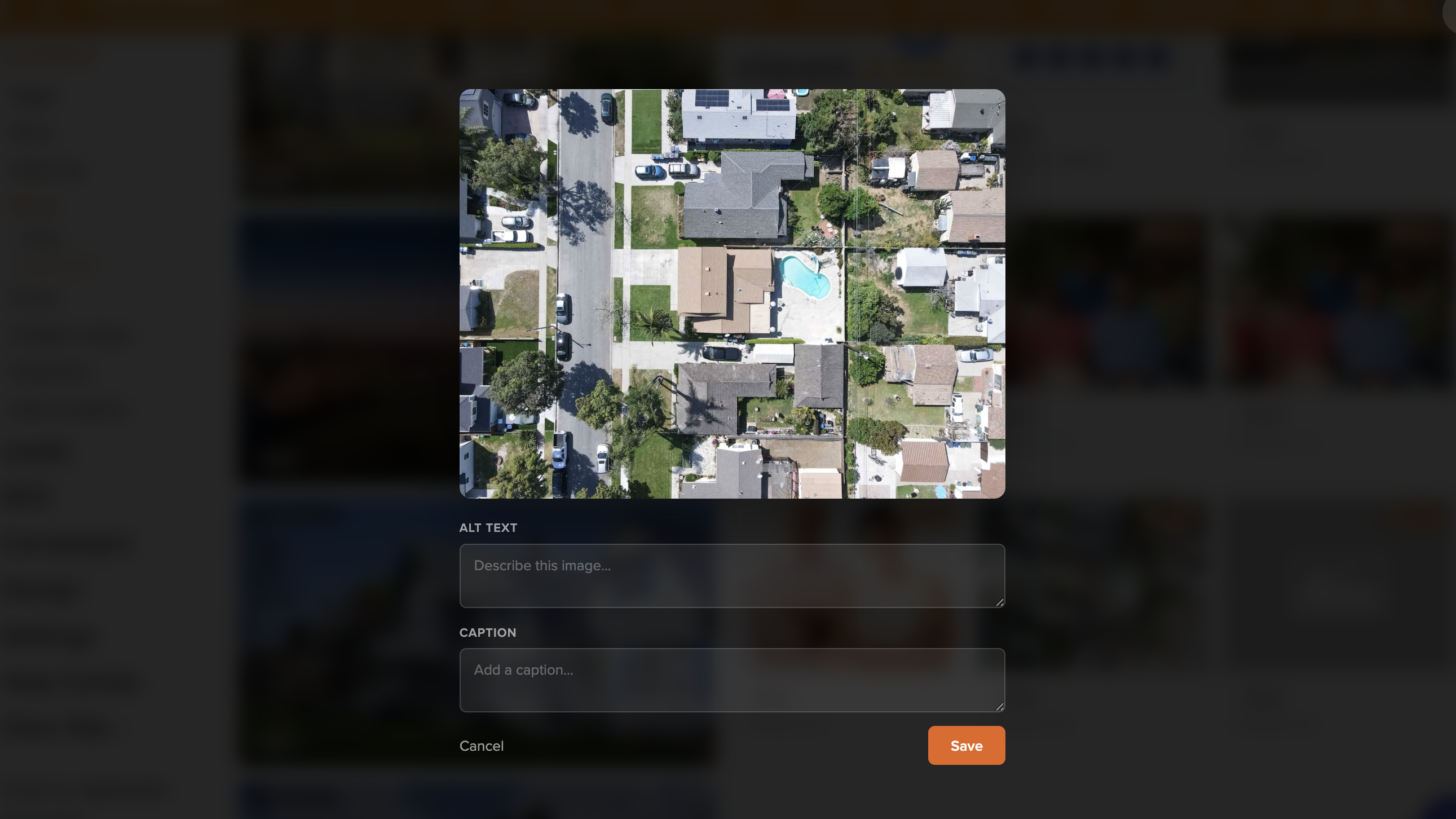
Alt text is a written description of an image that helps search engines understand what it shows — and makes your site accessible to visitors using screen readers. You can read more about best practices with alt text here
To add alt text:
- Find the image in the Image Audit list
- Click the Edit button (the small label icon next to the image)
- Write a clear description of the image
- Include relevant keyword phrases naturally where they fit — but avoid keyword stuffing
What makes good alt text?
- Describe what’s actually in the image (e.g., “Aerial view of suburban neighborhood in Dallas, TX”)
- Include your target location or keyword where it fits naturally
- Keep it concise — one to two sentences is usually enough
Alt text improves both SEO rankings and ADA compliance. Images without alt text are a common gap on new sites, and this tool makes it easy to fill them all in one pass.
Writing Image Captions
Captions appear visually beneath images and are written for the reader, not the search engine. They’re optional but can add context, personality, or credibility to your content.
To add a caption:
- Find the image in the list
- Click Edit
- Write a short, descriptive note
Captions are not as impactful for SEO as alt text, but they can be a nice touch on testimonial images, team photos, or before/after property shots.
Opening and viewing a Page Directly from Image Audit
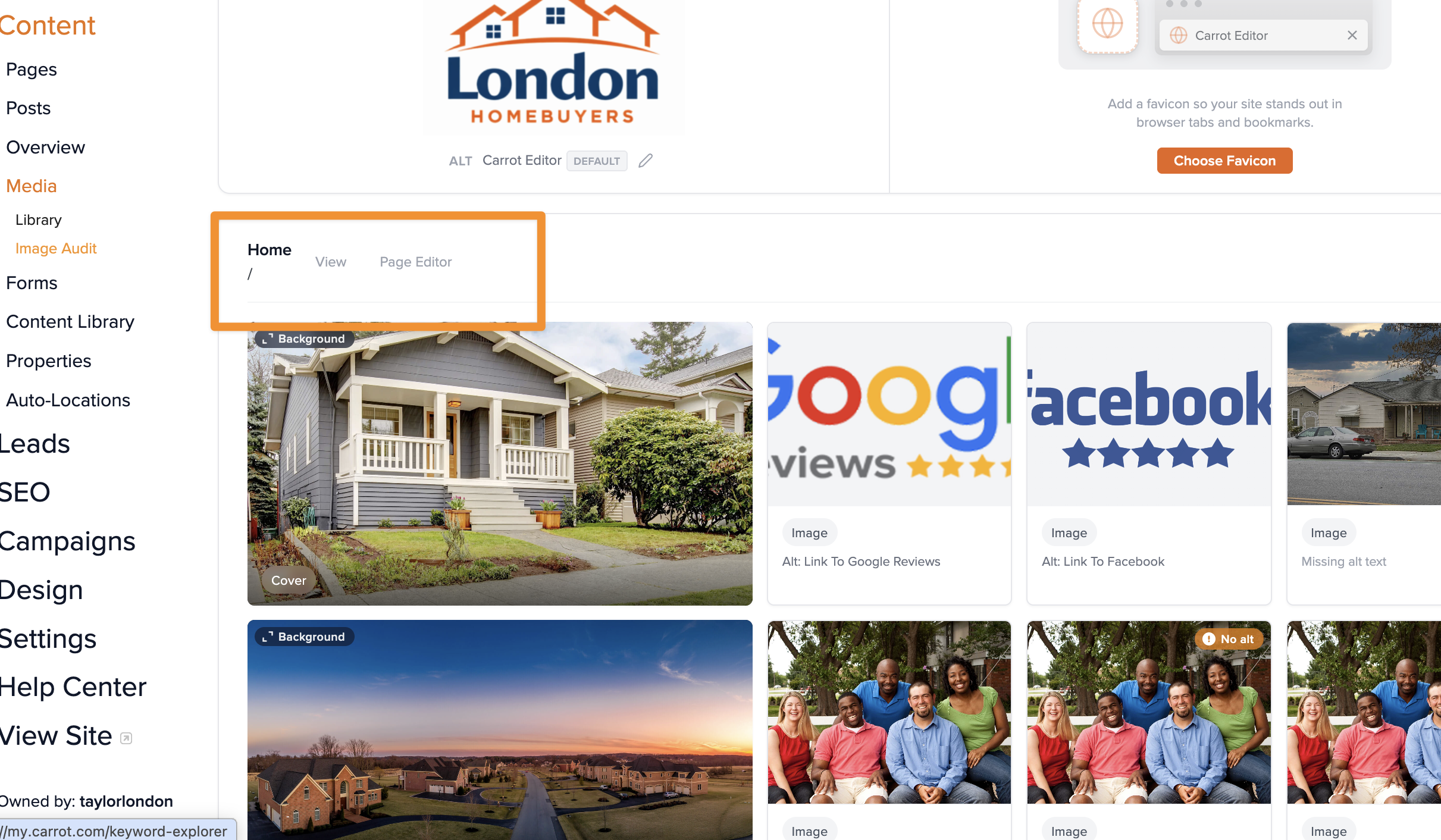
Every image entry in the audit includes a shortcut to its corresponding page editor. If you want to make deeper changes beyond swapping an image or editing alt text, click Page Editor to open that page in the full Carrot Editor. You can also view the full page by clicking the View shortcut.
This keeps your workflow fast — audit from the top level, then drill in where you need to.
Tips for Getting the Most Out of Image Audit
Start with alt text — it’s the highest-impact task: If you’re new to Carrot or just launched your site, run through the “Missing alt text” filter first. Getting descriptions on all your images is one of the quickest SEO wins available to you.
Don’t neglect your logo alt text: It’s easy to overlook, but your logo is an image too. Give it a descriptive alt text like “[Your Business Name] logo” to make sure it’s indexed correctly.
Replace stock images with local or relevant photos: Stock images are great placeholders, but photos specific to your market — local landmarks, neighborhoods, properties you’ve worked with — can meaningfully improve trust and conversion on your site.
Use the overlay shortcut while editing pages: If you’re in the page editor and spot an image that needs updating, look for the edit overlay — it’s a fast way to handle alt text and replacements without navigating back to Image Audit.
Learn More
- Carrot Editor: Overview of New Blocks and Design Features
- Carrot Editor: Site Logo, Site Title, and Site Identity Blocks
- Carrot Editor: Icon Block
- Blocks: Explained
New to Carrot?
Welcome!

Here’s our full guide for what to do when getting started with your Carrot website:
Want Us to do Some
Editing for You?

You are busy doing what you do best, running your business. Leave the site work in Carrot’s hands.