
 Written by Taylor London
Applies to: Motivated Seller sites published starting November 2025 and any Carrot site published from February 2026 on.
What Is a Landing Page, and Why Does It Matter?
A landing page is a flexible, standalone page designed to support a specific campaign or offer — separate from your main site pages so it can be tailored to a specific audience, message, or traffic source without affecting the rest of your site.
They’re most commonly used for:
- Google Ads / PPC campaigns — where the page must match your ad’s message to get a strong Quality Score (which lowers your cost per click)
- Facebook and social ads
- Direct mail or QR code campaigns
Because they live outside your main site structure, they’re typically not indexed by search engines — which keeps them from competing with your organic pages and lets you track traffic and leads specifically from your campaign.
The designs available in the Carrot Editor are inspired by some of the highest-converting pages across Carrot’s network — real investor sites where these layouts have consistently produced leads. You’re not starting from scratch; you’re starting from what already works.
Step 1: Add a New Page
- From your Carrot dashboard, click Content next to your site.
- Go to Pages → Add New.
- Select Standard Page, click Next, and give your page a name (e.g., “We Buy Houses – Google Ads – Cincinnati”).
Step 2: Choose a Landing Page Template
After opening your new page in the Carrot Editor, look at the Page panel in the right sidebar. You’ll see a Template field set to “Pages” by default.
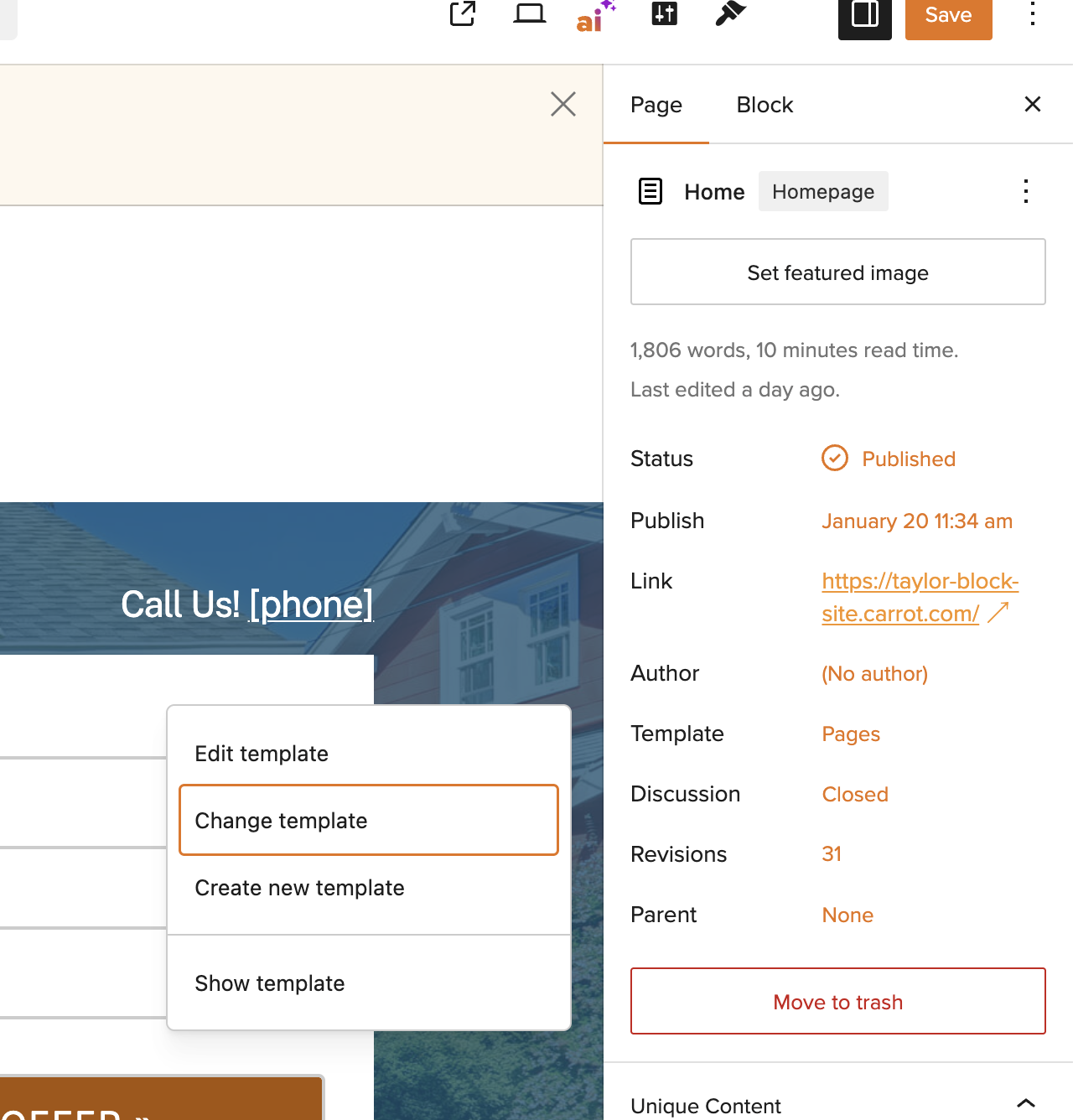
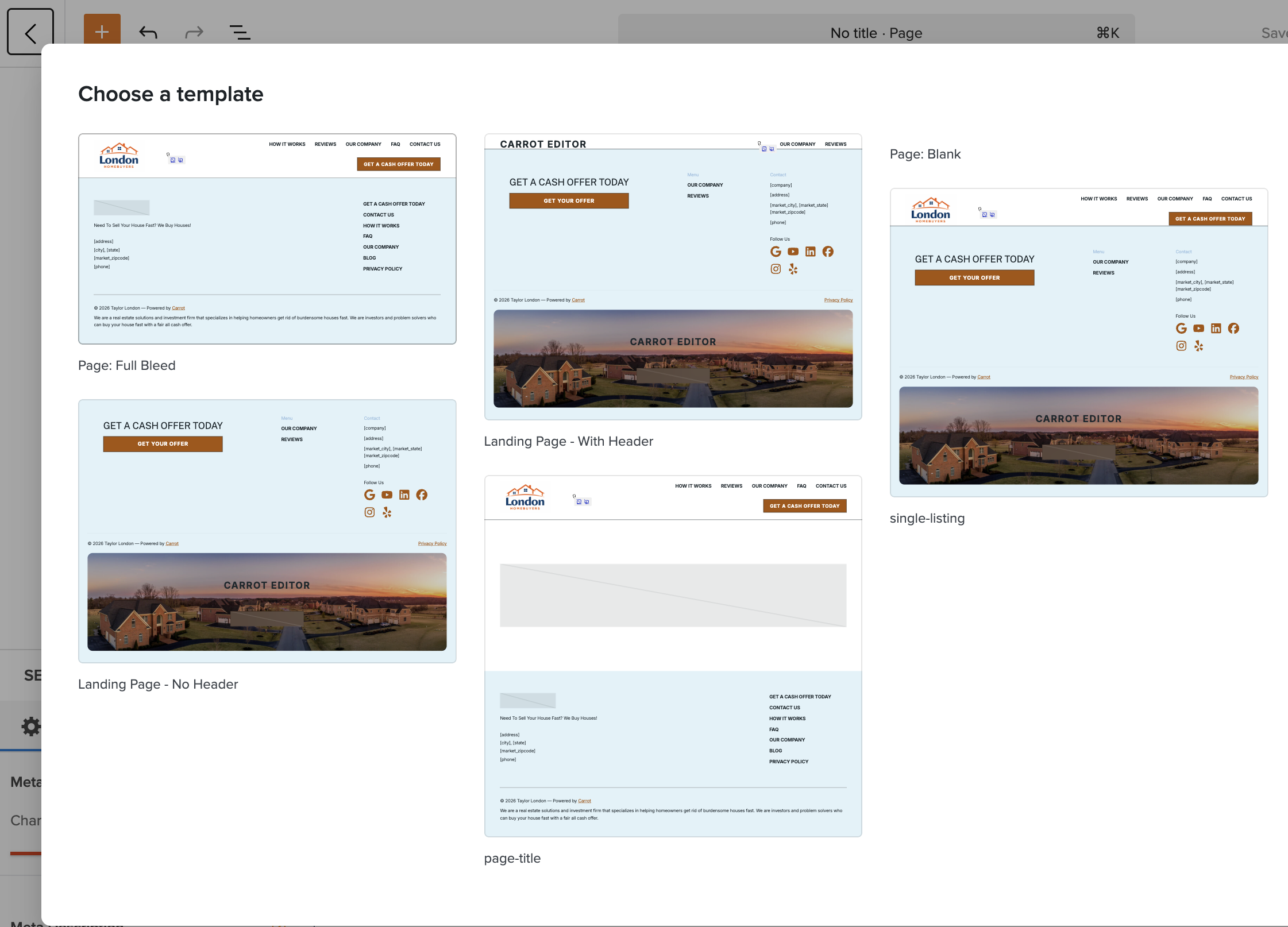
Click on Pages next to Template, then select Change template from the dropdown. You’ll see two landing page options to choose from:
Landing Page – No Header
No navigation, no logo bar — just your offer and your form. Best for high-intent PPC traffic where you want zero distractions.
Landing Page – With Header
Includes a streamlined header with your site title or logo, a click-to-call phone link, and a curated navigation menu. Good for campaigns where a little brand context helps build trust before the ask.
ℹ️ NOTE: Not sure which to pick? Both formats appear among the top-converting pages on Carrot’s network. Some investors find that a clean, header-less page drives more conversions; others find that showing navigation builds enough credibility to lift results. The best answer is to test.
Step 3: Insert a Landing Page Pattern
Inside the editor, open the Patterns panel via the orange plus sign and select the “PPC landing page” category. You’ll find two options:
- PPC Landing Page – Short: A tighter layout built for a punchy, direct offer. Works well when your traffic already knows what they want.
- PPC Landing Page – Long: More sections — benefits, social proof, FAQ — for audiences that need a little more convincing before they fill out the form.
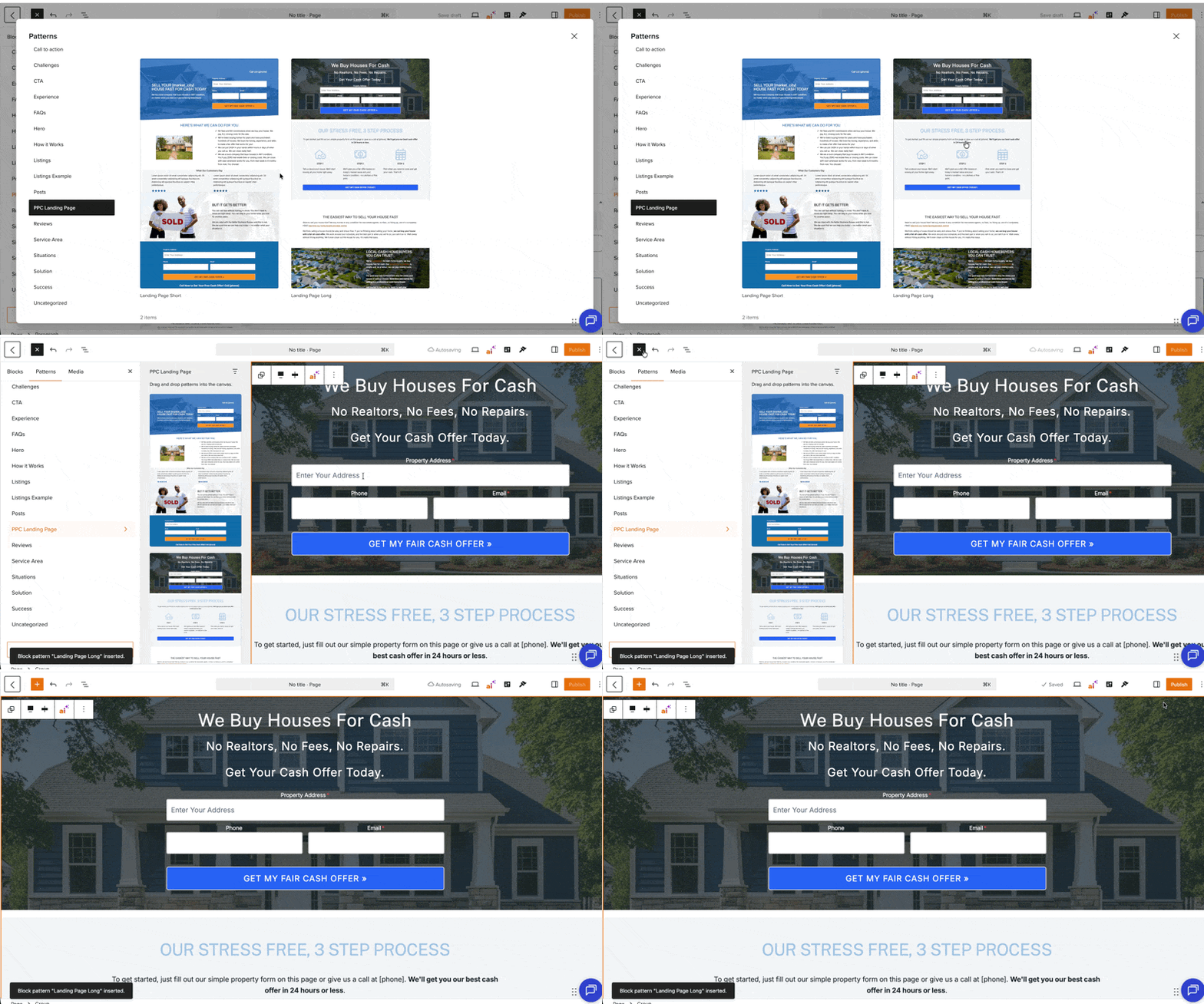
Click to insert. Your site’s colors and button styles are applied automatically — no manual styling needed.
Step 4: Customize Your Content
Edit any section directly in the editor:
Headline & subheadline
This is the most important thing to get right. Your headline should mirror the language in your ad. If your ad says “Sell Your House Fast — No Repairs Needed”, your page should say something close to that. This alignment directly affects your Google Ads Quality Score and helps visitors feel like they landed in the right place.
Images
Use the Image Audit tool (available to all members) to swap in your own photography quickly. You can replace background images directly from your site view — click the image, select your replacement from your media folder, and save. Local photography — your market area, your team — builds trust faster than stock photos.
Form
Your lead capture form is already embedded in the pattern. If you’re tracking campaign performance, confirm your form is connected to the right source so you can tie leads back to your ad spend.
Header navigation (if using the “With Header” template)
Any changes you make to the header on your landing page are isolated — they won’t affect the navigation on the rest of your site. Our tutorial covering Header and Footer customization in the Carrot Editor is here if you’d like more guidance.
Step 5: Publish and Verify
When your page looks good, click Publish.
Before sending traffic, run through this quick checklist:
- ✅ Headline matches your ad copy — same offer, same language
- ✅ Page is on your main domain (e.g.,
yoursite.com/we-buy-houses-ppc), not a subdomain — subdomains can hurt Quality Score and create SEO complications down the road - ✅ SEO is set to noindex if this page targets the same market as an existing location page
- ✅ Mobile preview looks clean — headline and form visible above the fold
- ✅ Form is submitting correctly — do a test submission before launch
Switching Templates After Publishing
Changed your mind about header vs. no header? Go to the Page panel in the right sidebar, click the current template name, and select Change template. Choose the other landing page option and save. Your content stays intact.
Tips for Ongoing Performance
Treat patterns as a starting point, not a final answer. The layouts are built from what converts — but your market, your offer, and your audience are unique. Adjust copy, swap images, and test.
Match page to ad, not site. Your landing page doesn’t need to look like your homepage. It needs to feel like a natural continuation of the ad someone just clicked.
Run one change at a time. If you’re testing with header vs. without, or short pattern vs. long, change one variable so you know what moved the needle.
Need help setting up your first landing page? Reach out to the Carrot support team — we’re happy to walk you through it.
New to Carrot?
Welcome!
Here’s our full guide for what to do when getting started with your Carrot website:
Want Us to do Some
Editing for You?

You are busy doing what you do best, running your business. Leave the site work in Carrot’s hands.