
 Written by Taylor London
 Applies to: Motivated seller sites published from December 2025 on and any Carrot site published from February 2026 on.
The Listings feature gives you a dedicated place to create and publish individual detail pages for anything you want to showcase — properties, services, products, or inventory — directly from your Carrot dashboard. Each listing gets its own page with structured fields, an image area, and a description, and you can extend any listing with a map, contact form, and more using Carrot’s built-in blocks.
Learn How To:
- Access Listings in Your Dashboard
- Create a New Listing
- Choose a Layout or Pattern
- Fill In Your Listing Details
- Add Images
- Add an Image Slider
- Add a Map or Contact Form
- Manage Your Listings Directory
- Tips for Getting the Most Out of Listings
Accessing Listings in Your Dashboard
- From your Carrot dashboard, click Listings in the left sidebar
From there you can view all your listings, create new ones, and manage drafts and published pages.
Your published listings automatically appear at yoursite.com/listings/ — a filterable, searchable directory of everything you’ve published.
Individual listing pages live at yoursite.com/listing/your-listing-title/
ℹ️ NOTE: Listings is available on sites using the Carrot Editor. If you don’t see the Listings menu item, reach out to support.
Creating a New Listing
- In your Listings admin page, click the Add New Listing+ button OR click Add New Listing in the submenu below the Listings menu item
- Enter the listing title — the property address, service name, product name, or whatever best identifies this item
The editor will open with a pre-built layout ready for you to fill in.
Choosing a Layout or Pattern
You have two options for how your listing page looks:
Default layout A clean, functional layout is already in place — title, status badge, price, key details, a featured image area, description, and a two-column details grid. Just fill in your content and publish.
Pre-built listing pattern (🥕 recommended) For a more polished, visually distinctive page, swap in one of Carrot’s pre-built listing patterns. These are curated layouts pre-loaded with your brand colors, so they fit your site out of the box — same effort to fill out, better result.
To find listing patterns:
- Click the orange ➕ icon in the top left of the editor
- Navigate to the Patterns section
- Look for the Listings category
- Click a pattern to insert it, then replace the placeholder content with your own
💡 Tip: Everything is editable regardless of which option you choose — nothing is locked. You can add, rearrange, or remove blocks at any point.
Filling In Your Listing Details
In the right sidebar, you’ll find structured fields that power your listing page display and (in the future) filtering and sorting in the directory. Fill in what’s relevant to your use case — not every field will apply to every type of listing.
Location
- Address, City, State, Zip
Details
- MLS number
- Price
- Bedrooms, Bathrooms
- Basement
- Lot size, Square footage
- Year built
- Property type, Construction type
- Terms
- Status (Active, Pending, Sold)
- Footnotes
💡 Tip: For non-property listings, use the fields that translate to your context — Price works for services or products, and the description area is flexible enough to cover anything from a service overview to a case study summary.
Adding Images
- In the right sidebar, find the Featured Image panel
- Upload or select the primary image for this listing
- If using a pre-built pattern, replace the stock image with your own
Important: For your image to appear in the listings directory grid, you must set a featured image here — not just add an image inside the page content.
💡 Tip: Your featured image is the first thing visitors see in the directory. Use something clear and representative of what you’re showcasing — a property photo, a service in action, a finished project, or a product shot.
Adding an Image Slider
Want to show multiple images on a listing? The Slider block lets you create a scrollable carousel of images that visitors can browse using arrows, dots, or keyboard navigation.
To add a slider:
- Click the ➕ icon in the editor where you want the slider to appear
- Search for and insert the Slider block (or select a pre-built pattern with an included slider block)
- Inside the Slider, add individual Slide blocks — one per image
- Upload or select an image for each slide
Slider options (available in the block settings panel):
- Autoplay — automatically advance through slides (off by default; set your preferred interval if enabled)
- Loop — slides cycle back to the beginning when they reach the end (on by default)
- Arrows and dots — show or hide navigation controls
- Slide size and gap — control how wide each slide appears and the spacing between them
💡 Tip: For property listings, a slider works great in the hero area to give buyers a quick visual tour before they read the details. For other uses, it’s a clean way to show before/after shots, multiple product angles, or a project gallery.
Adding a Map or Contact Form
Listings don’t include a map or contact form by default, but both are easy to add using Carrot’s built-in blocks.
To add a map:
- In the editor, click the ➕ icon where you want the map to appear
- Search for and insert the Google Maps block
- Enter the address or location you want to display
Learn more about the Google Maps block →
To add a contact form:
- Click the ➕ icon where you want the form to appear
- Search for and insert the Form block
- Select or configure the form you want to use
💡 Tip: For property listings, adding both a map and a form at the bottom of the page is a high-converting combination — visitors can orient themselves geographically and reach out without leaving the page.
Tips for Getting the Most Out of Listings
Think beyond properties: Listings isn’t just for real estate. Use it to showcase services you offer, deals you’ve closed, case studies, or any inventory you want visitors to browse — each with its own dedicated page.
Start with a pattern, not a blank page: The pre-built listing patterns are designed to convert — they’re worth the extra 30 seconds to select before you start filling in content.
Set your featured image first: It’s easy to forget, but the featured image is what drives the directory grid view. A listing without one won’t show a photo in your directory.
Use Status intentionally: Keeping completed or sold items visible with a “Sold” status rather than deleting them serves as social proof — visitors can see your track record.
Learn More
- Google Maps Block
- Explained: Pre-Built Block Patterns
- Customize Your Pages with the Carrot Editor
- Getting Started with Your Carrot Website
Close More Deals
with Carrot CRM
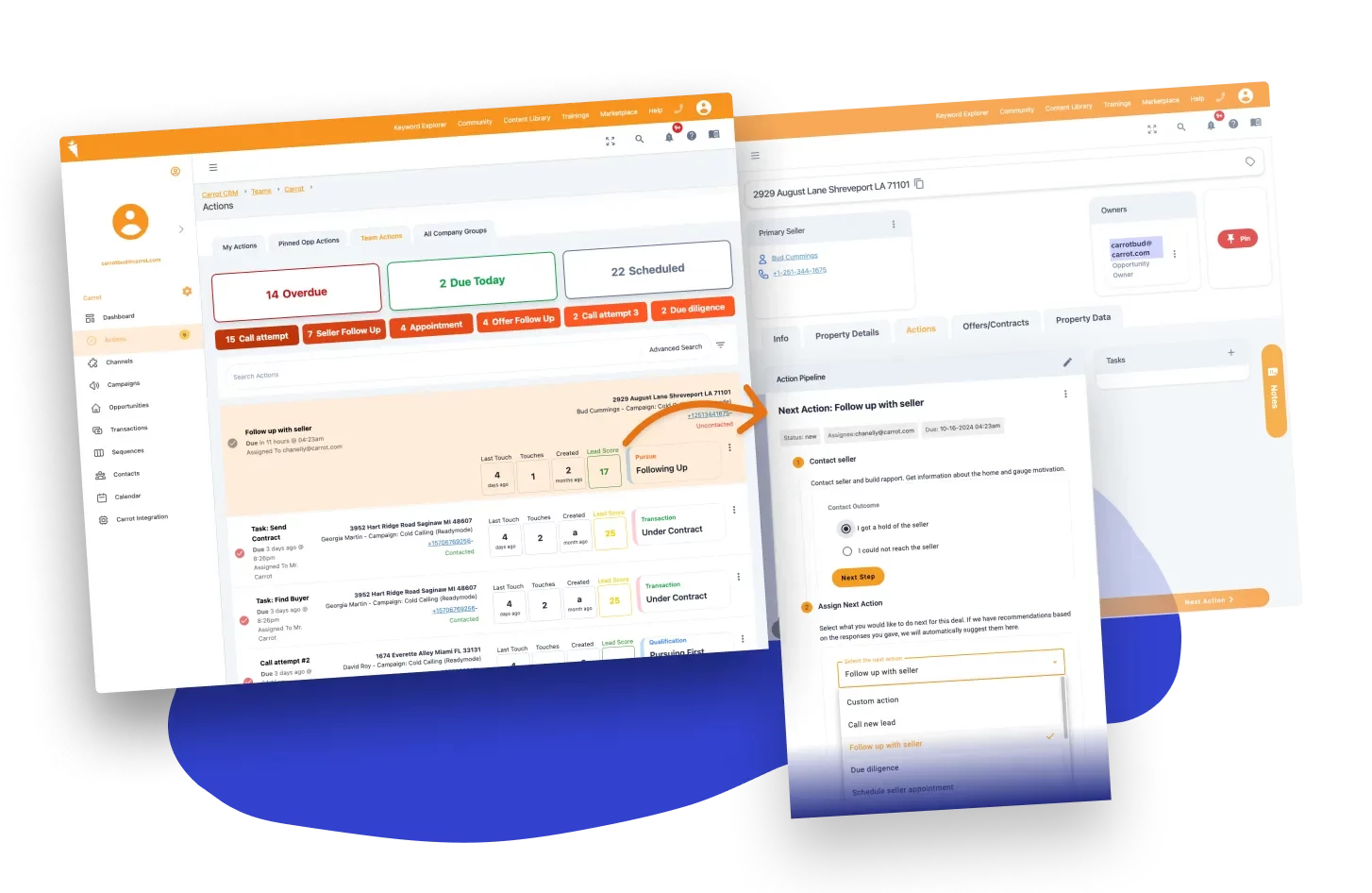
Grow your revenue and turn more leads into closed
deals with Carrot’s built-in CRM.
Premium Support
& 1:1 Strategy Calls

Members with our Premium Support Add-On can book
a 1:1 video calls for tech questions & strategic advice.