
 Written by Taylor London
Applies to: motivated seller sites published starting November 2025 and any Carrot site published from February 2026 on.
When customizing your header or branding area in the Carrot Editor, you’ll have three options that may look similar but serve different purposes. By default, we include the Site Identity Block in the header and footer of a site, but you have the option of swapping out with the Site Title Block and/or the Site Logo Block as needed. Here’s how to choose the right one for your needs.
Before You Begin: Access Your Site Template
To add or update your logo using the Site Identity, Site Logo, or Site Title blocks, you first need to edit your site template to access the header area.
Follow these steps:
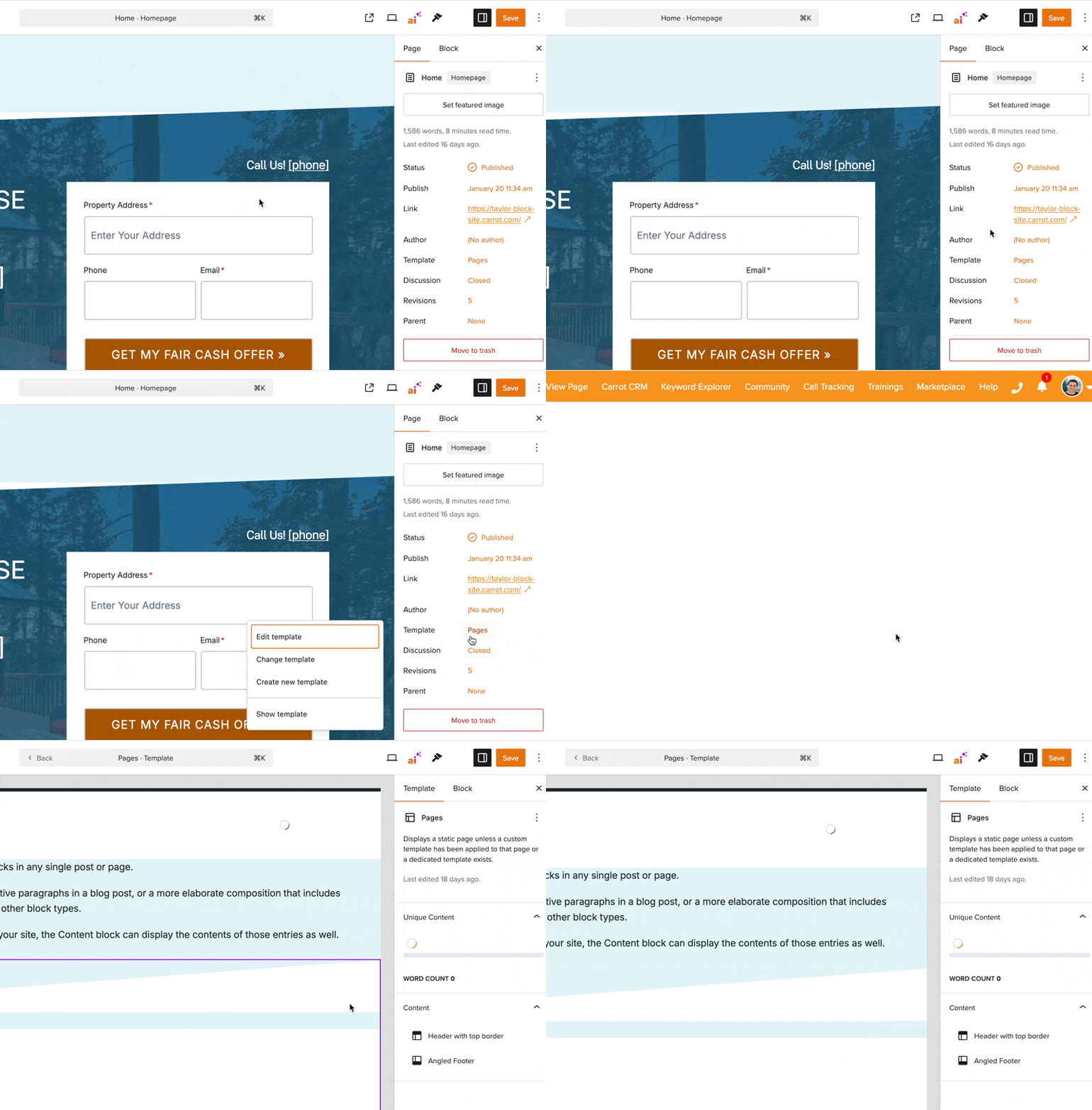
- From your Carrot dashboard, navigate to your site
- On the top navigation bar, click → Edit. The Carrot Editor will then display on the page you were viewing.
- In the right side panel, click Edit Site Template to view the given page’s template.
Once you’re in the Site Editor and have opened the page template, you’ll be able to access and edit the Site Identity block and other header elements.
📘 Learn more: Carrot Editor: Editing Site Header and Footers
Site Identity Block
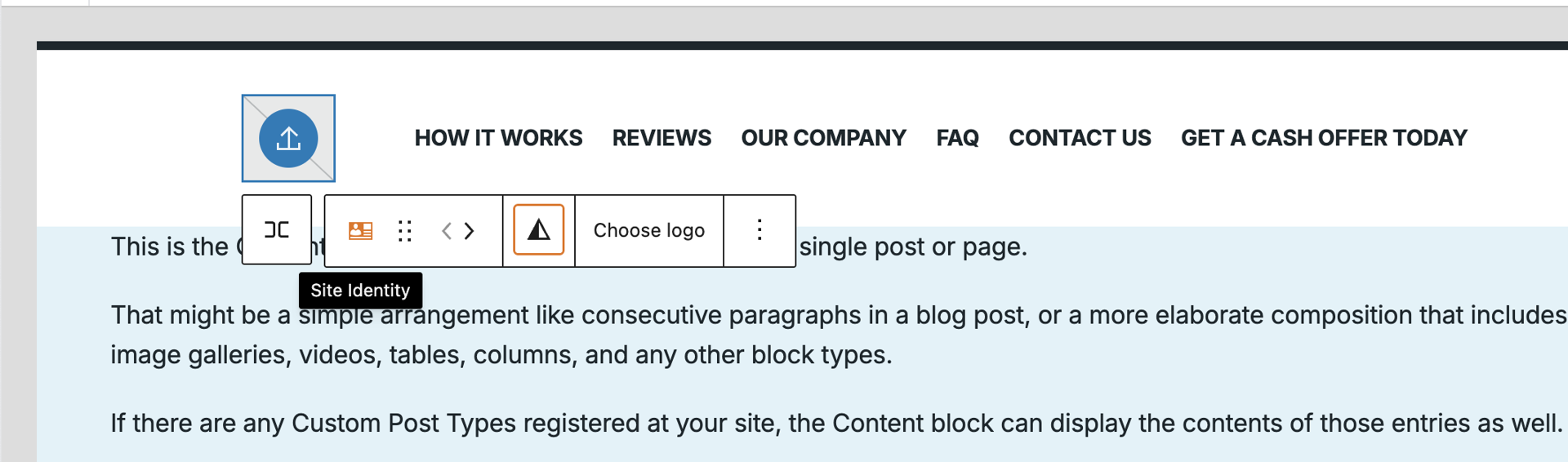
ℹ️ NOTE: The Site Identity block is the most streamlined way to show your site’s branding.
What it does
- Automatically displays either your logo or your site title
- If a logo is uploaded → shows the logo only
- If no logo is uploaded → shows your site title as plain text
- Displays the site title without creating an additional heading level
- Prevents accidental duplicate H1s
- Keeps the header/footer clean with minimal settings required
Why it’s especially useful for headers and mobile
- The block takes up less space than placing a logo and title separately
- It avoids stacked or oversized elements that push down important content
- On mobile, where space is tight, Site Identity helps keep the header compact and uncluttered
- Helps ensure faster access to your hero text, call-to-action, and navigation
Where it’s limited
- Text styling is minimal (no custom font size, color, or weight)
- Does not support advanced logo styling (use Site Logo if you need that)
- Designed to be simple rather than heavily customizable
Best for
- Users who want a clean, SEO-safe header with zero configuration
- Mobile-first layouts where header height matters
- Carrot’s prebuilt templates, which are optimized with this block already
Site Logo Block
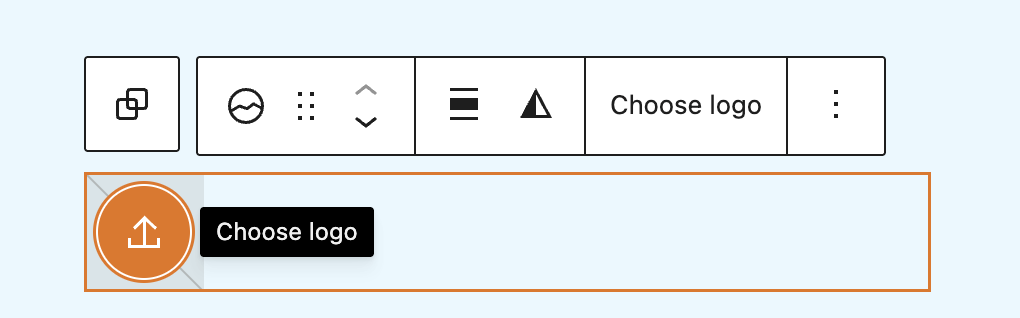
ℹ️ NOTE: The Site Logo block displays an image that represents your business. More on determining the best logo for your business here.
What it does
- Shows your uploaded logo image
- Lets you resize the logo
- Lets you apply simple visual effects (such as duotone filters)
- Allows you to set the logo as your site’s browser tab icon (Favicon)
- Updates everywhere if you change the logo once
Where it’s limited
- Does not display text automatically if no logo is provided
- Does not show your business name unless the name is part of the image
- Does not offer text-based styling (color, font, etc.)
Best for
- Users who have a logo file and want full control over its appearance
- Headers or footers that rely on a graphic-based identity
Site Title Block
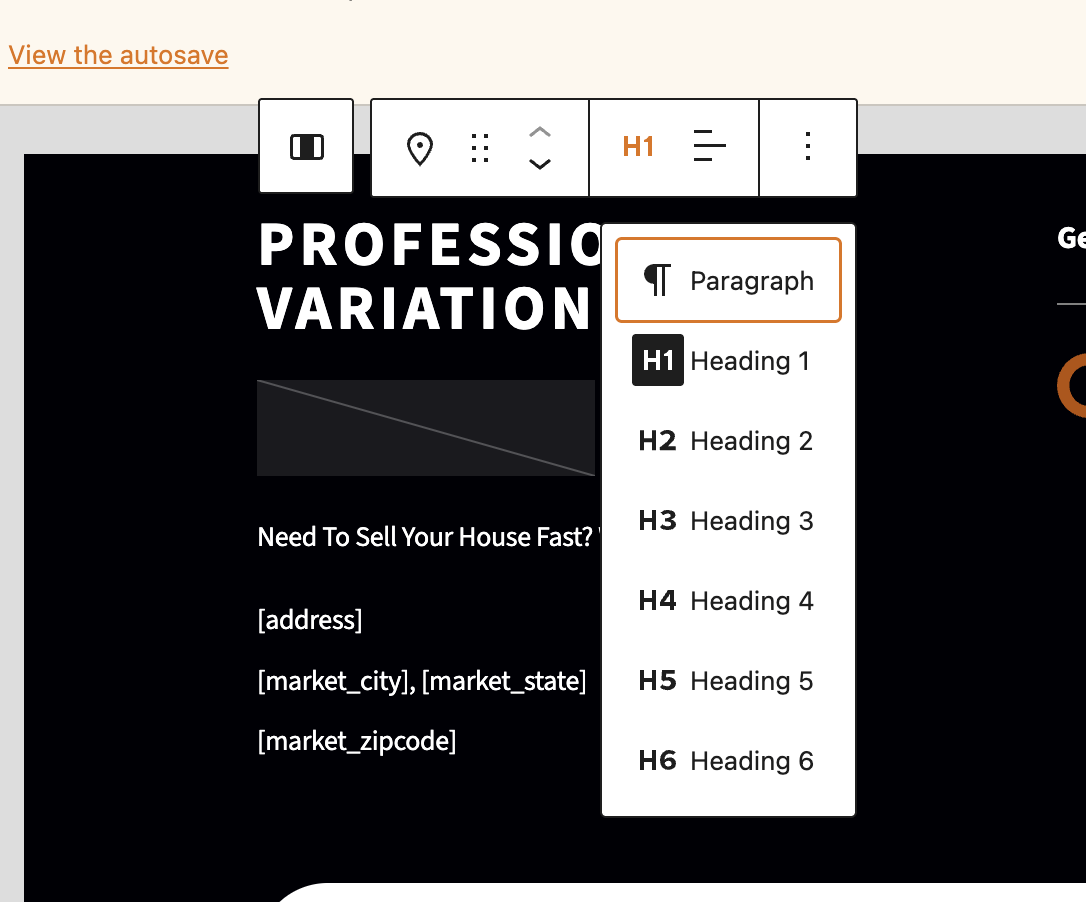
ℹ️ NOTE: The Site Title block displays your business name as text.
What it does
- Shows your site title in text form
- Lets you edit the title directly if needed
- Offers styling options: size, weight, color, letter-spacing, and alignment
- Lets you choose the text element type (heading, paragraph, etc.)
- Helpful for controlling SEO structure (see above screenshot)
Where it’s limited
- Does not hide itself if a logo is added
- Only shows text — no image-based styling
- Can impact SEO if set as an H1 in the wrong place
- (Carrot Recommends: Adjust the heading level to and H2 or H3 avoid this)
Best for
- Users who want a text-only identity
- Anyone who needs full styling control over how the site name appears
- Templates where a styled title fits better than a logo image
Which block is right for you?
| You want to… | Best choice |
|---|---|
| Show a logo with full styling control | Site Logo |
| Style your site name with custom fonts or colors | Site Title |
| Keep the header small and mobile-friendly | Site Identity |
| Avoid duplicate H1s automatically | Site Identity |
| Let the editor choose between showing your title or logo | Site Identity |
| Use a text title with full styling options | Site Title |
| Use a logo and nothing else | Site Logo |
Conclusion
And that’s it! With the Carrot Editor, setting up your site’s identity is as easy as dragging in a block and choosing whether you want a logo or a text title! Whether you go with the streamlined Site Identity Block to keep your header clean and mobile-friendly, or want full control with the Site Logo Block or Site Title Block, you’ve got flexibility without needing to touch a line of code.
Now that your branding’s taken care of, you’re all set to move on — personalize colors, logos, and layouts across your site and make it truly yours. Happy building!
Learn More
Close More Deals
with Carrot CRM
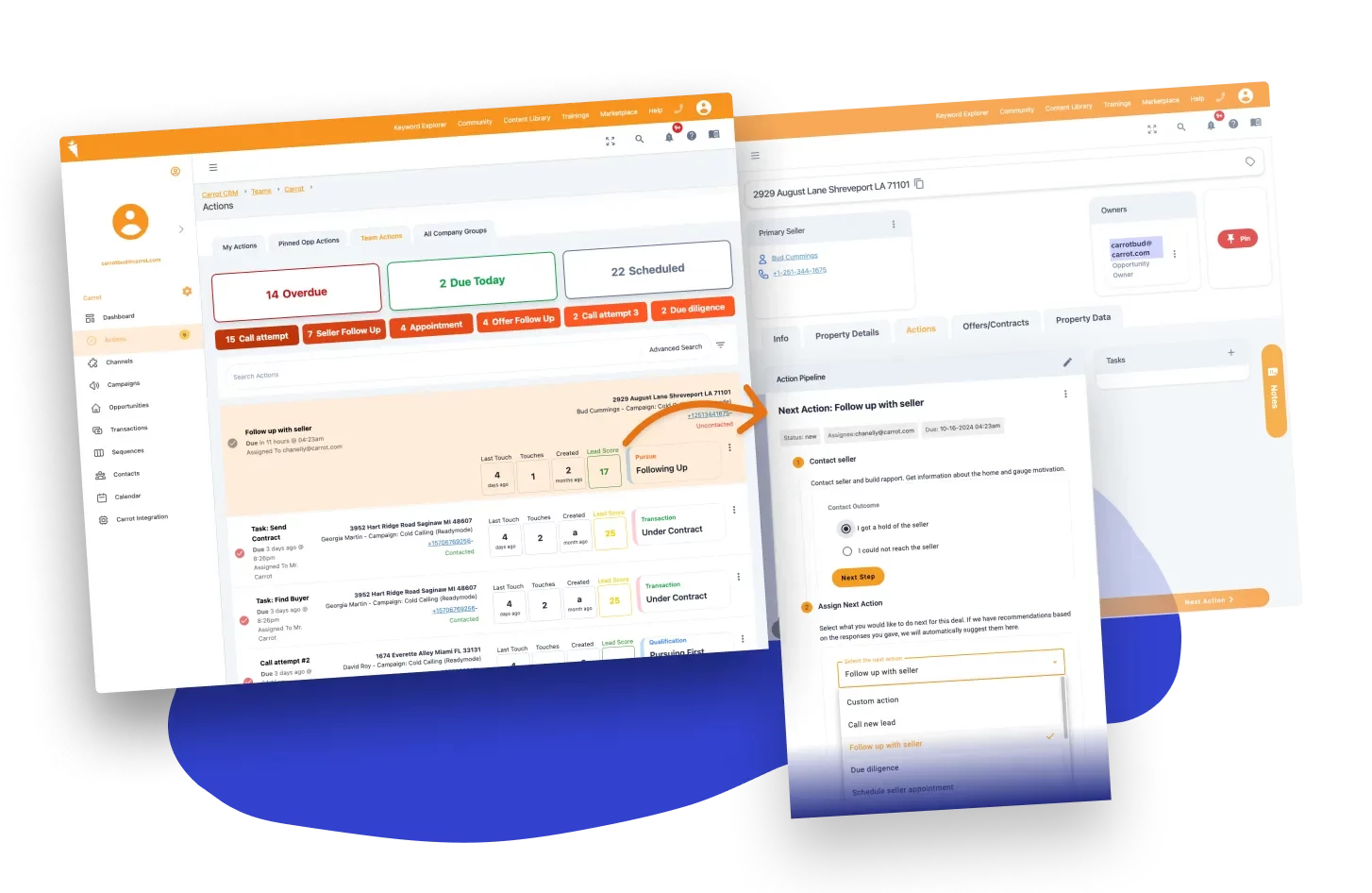
Grow your revenue and turn more leads into closed
deals with Carrot’s built-in CRM.
Premium Support
& 1:1 Strategy Calls

Members with our Premium Support Add-On can book
a 1:1 video calls for tech questions & strategic advice.